Copy as HTML Link for Firefox
Here’s the scenario
 You’re blogging. WordPress, Movable Type, Blogger, it doesn’t matter. You’ve got like 15 to 20 tabs open in Firefox. As per usual.
You’ve just stumbled upon the best quote on some blog that’s like totally supportive of whatever you’re blogging about. So you copy the URL and flip back to your post, only to experience this unsettling cognitive race condition.
Since you’ve yet to copy the actual text of the quote into your post,  you can’t use your blog’s “create a link” button (some popular examples to the right). But at the same time, you can’t go back and copy the text without losing the URL. Errr.
Have you heard the one about the farmer trying to get a wolf, a sheep, and a cabbage across the river?
So what happens?
As a workaround, you paste the URL into your post, flip back to the post you got the URL from, copy the text you meant to excerpt, flip back to your blog (trying to find the right tab), paste the text, cut the URL out of your post, select the copied text, click the “create a link” button, and finally paste the URL into the JavaScript popup where you’d originally intended.
All that for a link! Two words: usability nightmare.
Even if things had happened in the right order—select text, copy text, switch tabs, paste text, switch tabs, copy URL, switch tabs, select text, click “create a link” button, paste URL—copying a simple quote and its URL from a webpage still requires 10 tedious, error-prone, and redundant steps.
So what should happen?
I want to be able to copy a quote and its URL at the same time, without having to so much as think about it. To do so, I wrote my first Firefox extension, which I opted to name the somewhat homely, Copy as HTML Link.
I took Jeremy Gillick’s Copy Plain Text plugin and modified it (with permission) to build an HTML link out of whatever text is selected, containing both the text and its URL. The idea was so simple, I can’t believe I didn’t think of it earlier. I also looked at Jedrick Kostecki’s excellent imgTag extension for inspiration, which does the same for <img /> tags when you right click on an image.
So if you were to use Copy as HTML Link to copy the first line of this paragraph, and then you pasted that into your blog post or text editor, you’d get:
<a href="http://justinsomnia.org/2006/05/copy-as-html-link-for-firefox/">I want to be able to copy a quote and its URL at the same time</a>
How to use Copy as HTML Link
Here’s a visual explanation of how it works:
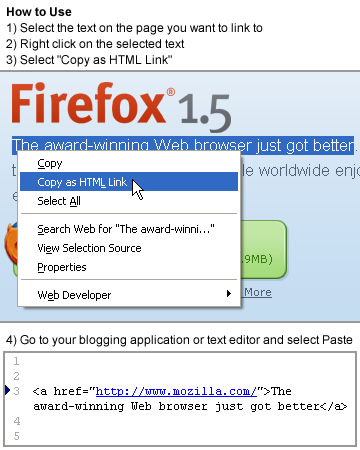
What was 10 steps becomes 4: Select text, right click and select Copy as HTML Link, switch tabs, paste link.
Bonus step 5: continue blogging, train of thought intact.
Update, v3.1: Added French, Dutch, Serbian, and Chinese (zh-CN) locales; prepped for upcoming clipboard changes in Firefox 16, fixed weird context menu indentation on Mac OS X.
Update, v3.0: Copy as HTML Link now works appropriately when pasting in HTML-aware contexts, like rich email clients and WYSIWYG blog post editors.
Update, v2.0: Copy as HTML Link can now copy the text and URL of any link when you right click on it, without the need to select the text (which can be strangely frustrating in some situations). It’s super handy for copying the title and permalink of blog posts.
Get Copy as HTML Link
Install from Mozilla Add-ons: Copy as HTML Link
For IE users: Brian Layman has created a version of Copy as HTML Link and imgTag for Internet Explorer.
Questions, comments, and suggestions are always welcome. If you’re interested in contributing to the code behind Copy as HTML Link, it’s hosted on GitHub.
Absolutely Brilliant! Thank you!
How about Copy IMAGE as Link?
Brian, actually it already exists.
In my search for an extension that created links like this one, I found imgTag which does similar for
<img />tags when you right click on an image.[…] So he created Copy as HTML Link for Firefox and generously shared his moment with wp-hackers Subscribers . It looks good and he did a good job documenting it: […]
[…] Die Firefox-Extension Copy as HTML-Link erlaubt das einf
[…] Ein einfacheres und schnelleres Bloggen ermöglicht nun die Firefox-Erweiterung “Copy as HTML Link”, die über den Beitrag des Autors unter justinsomnia.org installiert werden kann. […]
[…] (English Version below) In ihrem Artikel Speed-Blogging mit Copy as HTML schwärmem Evy & Stefan Evertz: Ein einfacheres und schnelleres Bloggen ermöglicht nun die Firefox-Erweiterung “Copy as HTML Link”, die über den Beitrag des Autors unter justinsomnia.org installiert werden kann. Während ich bisher den zu zitierenden Text markieren und kopieren musste, ihn dann in meinen Beitrag kopieren musste, um dann wieder zum zitierten Beitrag zu wechseln, um dort die Adresse in die Zwischenablage zu kopieren, reicht nun ein Klick, um den Text inklusive Link in die Zwischenablage zu bekommen […]
[…] As I told you yesterday, there are a few things waiting to show up on this blog – and I told you it was an ordinary school day today. I actually wasn’t at school today because I contracted an illness. Fortunately it isn’t that bad so I’ll likely go to schol tomorrow again. To come to the really interesting topics for you: For every blogger and Firefoxuser, there are two extensions I recently found to be practical. Number one is Copy as HTML Link, which creates a HTML link to a site with the text you higlighted on the site and copies it to the clipboard. Now there’s no more fiddling around with a href, just paste the code from the clipboard and you’re done. The second one is only slightly different: Jedrick Kostecki’s imgTag extension does the same job for images. […]
[…] Copy as HTML Link for Firefox – Justinsomnia (tags: firefox extension) […]
[…] gutes Plugin für Firefox, Copy as HTML Link: Webseiten-Text markieren, kopieren und einfügen. Dabei werden auch die HTML-Links mitgenommen. Super praktisch beim Bloggen. Mit ein Grund, warum ich damals das Performancing Blog-Plugin genutzt hatte, das geht sogar mit Drag&Drop in die untere Fensterhälfte vom Firefox-Browser. […]
[…] Copy as HTML Link for Firefox ist eine super Extension, die den Link aus der Eingabgezeile mit einem beliebigen Text der jeweiligen Seit in die Zwischenablage legt. […]
[…] Die Firefox-Erweiterung Copy as HTML Link for Firefox spart viel Zeit beim Bloggen! Das Kopieren einer URL per Rechtsklick mit dem anschließenden Aufwand den Link-Tag zu schreiben entfällt mit dieser Erweiterung, da der fertige Tag eines markierten Links in die Zwischenablage kopiert wird. Zu ergänzen wäre dann z.B. nur noch eine target Angabe. Super Extension! […]
[…] Endlich ist sie da, die Firefox-Erweiterung, auf die ich gewartet habe: Copy as HTML Link for Firefox. Bisher habe ich zum Bloggen genau aus diesem Grunde Safari verwendet, denn »Copy as HTML« bringt eine beträchtliche Zeitersparnis mit sich. Statt eine URL per Rechtsklick zu kopieren und dann einen Link-Tag zusammenzusetzen, erhält man nun auch in Firefox per Rechtsklick den kompletten Link-Tag zur Weiterverarbeitung. Wow und Danke! […]
[…] Last but not least: Copy html Link ist fuer Safari Benutzer nichts Neues, fuer Andere aber schon. So lassen sich naemlich mittels Rechtsklick Texte markieren und direkt als html Link woanders einfuegen. […]
[…] Talking of Firefox extensions, wouldn’t it be useful if there was one that allowed me to copy a quote and its URL at the same time, without having to so much as think about it? Well, now there is, and I just used it to link to Justin, who wrote the extension. […]
Great, brilliant, effective.
Thanks Justin.
[…] hier zu finden […]
Would it be easy to modify this ext. to format for pasting to a vbulletin url format?
[URL="http://......"]Copied Text[/URL][…] I don’t think I need to extoll the virtues of Firefox here, but it sure does have good extensions, which would make a post in of themselves. I’ll confine myself to the latest one I’ve nabbed: the copy as html link firefox extension which is a boon to bloggers everywhere (along with Google Notebook) in cutting and pasting links (how often have you copied the address, come back here, pasted it, gone back, copied the title, back here, paste, and so on ad infinitum?). With this, you highlight the text you want, right click, choose the copy as html that is now present, and go back to paste in one step. This is one of those tiny little utilities that fix something truly headdesking and yet never addressed till now and you wonder why it doesn’t do it this way to begin with. This is functionality that should be built into browsers. […]
Wow. Once again, you are my hero, Justin. Thanks and rock on…
Thanks for the mad props Ruby! (You catching up on old blog posts?)
[…] Copy as HTML Link for Firefox (via Pixelgraphix) Erweiterungen, Firefox « links for 2006-05-27 links for 2006-05-28 » Tags / Verwandte Artikel: […]
Maybe you can also make it as BBCode, its usefall as the html link. Thank you very much, nice work.
As a person that is new to blogging. This is a really simple but extremely useful tool. Great job!
i love you. you made exactly what i needed. you’re my hero! lol.
jason, you’re very welcome.
add target=”_blank” ?????
pheonix, I tried to keep this extension as simple and general as possible, without lots of configurable options. If I’d adding the ability to do
target="_blank", someone else would wanttitle="blah". So rather I opted for a minimal anchor tag that you can then manually add additional attributes to as you like. You can also download the plugin and modify the source to your liking.Love the extension by the way
Thanks
i need help…i want to make a link that leads to 15 addresses
meko, I’m not sure I understand what you’re asking. This plugin generates a link to the page you are viewing based on the text you have selected at the time you right-click, e.g.
What about copying links from Google search results?
fateh, that’s a little more difficult, since Google often obscures the link to send it through a redirector in order to count which results you click on. The best option would be to open the result page in another tab and use Copy as HTML Link from there.
Great Extension !
How can I copy multiple links from a page as HTML?
bo, since the link you’re “copying” is the link to the page you’re currently on (not a link on that page to another page), it doesn’t make sense to copy multiple links. there is only one possible link.
Oooooh thank you so much … this wudda saved me hundreds of hours in the past years.
Justin,
That’s a lovely extension. I came across it while looking though for something slightly different. Perhaps you’ll find it interesting enough to incorporate in a future release of this extension. The idea is that you may already have a text in your textarea, and you want to put a link on top of it. So I’d like to have an extension that, upon a paste command inside a textarea with a selection present, provided that clipboard contains a URL, will make the selection into a link to the URL in question. What do you think?
I would love if you can make a feature for copying mutliple links and include the link text and location.
For example, I want to copy a list of links from one webpage, and I want to paste those link locations along with the text into a list. I would like it to auto generate the html code for the mutliple links, locations and text. This would be the biggest help EVER. Can you do it?
Any chance of an update so it will work with Firefox 3.
Hey all, I’ve tested on Firefox 3.0b4, and it worked like a charm, so I’ve bumped the version number as high as they’d let me on addons.mozilla.org and I’ve bumped it all the way to 3.0 if you care to download directly from here. Since I didn’t change any code or functionality, I’ve left the version number 1.1.
Wicked – put me off Firefox 3 because it says this extension isn’t compatible. Thanks for updating it. I NEED this one
this extension is great, I love it!
My only request would be to let it copy the url of a page when you right click in an empty space, and insert the title of the page instead of the text that you would have had selected. This would let users link to pages with one click!
The best part is that it doesn’t conflict with the way the extention works now.
This is a great plugin! One question, can you get it to work with Gmail? When I paste into a Gmail textarea, it pastes the HTML, but Gmail does not convert it to a text link, it sends it as HTML code. Perhaps you could add a feature to “Paste as HTML”, which could paste the text-link and not the HTML code itself? This would be handy for email applications.
Yo, afaik, Gmail, and other html based apps that allow in-browser HTML editing use some combination of “proprietary” hidden divs and iframes to create editable HTML elements like links in email. Thus it would be a nontrivial task to reverse engineer, and would have to be updated any time Google makes a change to Gmail. I wonder if there isn’t a Greasemonkey script available to do something like this.
Check out Rory Parle’s very similar Make Link extension. It’s like Copy as HTML Link on steroids! I may have to
stealborrow his click-link-to-copy functionality.Copy as Image Link for FF:
https://addons.mozilla.org/en-US/firefox/addon/10247
Just written by a friend of mine. Please log in and review it if you can so it can be public.
Meus linkis aqui no firefox nao entram no mainframe fazendoum download em nova pagina. uso o dreamweaver e no IE abre no mainframe. certo. se puder dar uma explicação agradeço Obrigado Edvaldo
edvaldotm@gmail.com
My linkis here in the firefox they don’t enter in the mainframe fazendoum download in new paginates. use the dreamweaver and in IE he/she opens in the mainframe. right. if he/she can give an explanation thank Thank you Edvaldo
edvaldotm@gmail.com
I just upgraded to Firefox v.3.5, released June 30th, 2009, and it told me that “Copy as HTML Link” is not compatible with this version. It disabled the add-on. Will you be testing and certifying it (or whatever) for v.3.5?
Thank you very much. I love “Copy as HTML Link”.
Brian, yeah, thanks for the props. Well it always helps to get have push. Chances are it works fine without modification, so I’ll try to spend some time testing tonight.
I use this plugin religiously because I answer posts in the MSDN forums and use it by pasting the html into the html editor popup, instead of using the link popup and having to copy two items to get it to work.
Like any developer I surmise life and what not is keeping you from releasing a new version. Your fan base awaits. :-)
Thanks for the plugin.
Brian and William, thanks for the nudge. Copy as HTML Link is so simple, the existing plugin worked flawlessly in Firefox 3.5. So I updated the max version number and have submitted a new version to Mozilla for review and hopefully a quick approval.
If you’d like to get it sooner than that, you can install it directly from my site by clicking the install link towards the end of the post. Happy linking.
Thanks for updating it. I just did the direct install.
Thanks :)
Installed and happy again. This is the finest, simplest solution for linkblogging I’ve ever used. Thanks!
Nice 2.0 Feature about the copy link…for I quote my blog when answering MSDN forum posts. By selecting an article from my site in the Site Map, that makes my job soooo much easier the searching the article, going to the page, highlighting the title. Excellent feature!
William, thanks, it’s been something I’ve been meaning to do for a while, but just finally got around to it.
Hi! You wrote "I tried keep this extension as simple and general as possible, without lots of configurable options" and "you can then manually add additional attributes to as you like". I correctly understood? I mast replace
…to my template ?
by the way exist extension “Make Link”. Very useful and allow edit template by user. very ascetic anything superfluous. Unfortunately it conflict with another extension “Cache Status”. Author it seems has thrown development… (or internet all :))
Alexander, thanks for the comment. I built this plugin for me, to do exactly what I wanted it to do and nothing more. And it does that one thing (well, as of v2.0, two things!), very well.
I didn’t set out to solve everyone’s problem. I just wanted it to work as simply as copy/paste.
If you are talented enough to unpack the extension and read the JavaScript to discover exactly the lines where I build the link, then surely it’s no problem to modify that line to your liking, and add
rel="nofollow".If you prefer an infinitely configurable link copying extension, check out CoLT. Me, I’m sticking with Copy as HTML Link.
Great! This is what I was looking for. Thank you! Among the huge number of extensions that hard to find something useful. As a result, the actual benefits are at someone some advice :)
Any plans for a Chrome version? This extension is one of the things I’ve missed since moving from Firefox to Chrome.
I haven’t touched Chrome yet. So nope, no plans. Firefox works just fine for me on Ubuntu. Thanks for the vote though. Something to consider… ;)
Great addon ¿Update for Firefox 3.6? Thx
When copying into an email, I wanted the HTML code to be interpreted instead of pasted as plain text. So I modified the extension like this: http://pastebin.org/449105
Hmm, interesting. I’ll take a look and play around with it, and then update the plugin with these new bits. Thanks.
Hello,
Thanks for your extension, it’s really very useful and helpful! I blog quickly and easier with it. I would like to suggest to add the property target=”_blank” it would be awesome!
Anyway, thanks for this extension.
Yann, thanks for the suggestion, but I’m not going to do that. On one hand, forcing links to open in a new window is really bad idea from a usability perspective (let people choose by Shift or Ctrl+clicking the link), on the other hand, hardcoding it on every link is also a bad idea. You might as well just add some jQuery code to add that attribute with a single line.
Can you make an option to copy and paste multiple html links.
Mark, given that the link “Copy as HTML Link” copies points back to the current page you’re on, I don’t see how one would be able to copy “multiple” links. Unless you mean just extracting all the links within a section of text that you’ve selected—in which case that would be a different plugin altogether.
i want the image to be a link location, what do i have to do?the image is currently just a logo.
Thanks a lot!
Ive been using and very much appreciating your addon for a bunch of years now– but I finally came to your page here to see if I can ask about one particular frustration. (Im still using Fx17 btw, and will be very resistant to changing given my customizations wont work on any of the newer Firefox– but your update works fine as it has been)
My question: can it make a link for an onboard html page, that is, something open in my browser with the url (file:/// etc…) or is this prohibited by something intrinsic from firefox? I use the scrapbook extension a great deal, and very very often find I want to create a bookmark to a stored page using text on that page. I would then copy the html link created by your extension to a blank “editable” page, and bookmark from that. It wont let me though, and Im left handcrafting a link the long way, or editing the bookmark after filing it away with the text I wanted in the first place–
Thanks so much, in any event!
Tom, I just tested the plugin using a local file on my desktop at it worked just like I expected. This is what it copied:
Or maybe I’m not understanding what you’re asking for.
I was using Firefox 17 (for years now! refused to change!) until yesterday– now Im using Palemoon (mozilla based) 25, and indeed, it works fine — maybe it was a conflict with an addon? Happy now though!
Thanks for getting back
much appreciated!
Hi! I see no update since 2013? Maybe it doesn’t need one, but I thought I’d ask, since I just discovered this addon. :) Thanks!
Rainy, it’s a simple plugin that accomplishes a simple task, and still works. No need for an update.
Hi!
I’ve tested e10s https://wiki.mozilla.org/Electrolysis#Force_Enable
And when I set “browser.tabs.remote.force-enable” to true – the addon stops working for me.
Firefox for Ubuntu 49.0.2
Only partially works in e10s. You can point at a link and it will copy the title and URL, but if instead you select text, it doesn’t work.
Hey! Any chance to get an update for Firefox 57+? Great Add-On, thanks :)